
Step-by-step guide to launching your eBay store
Author: Prolisto Team · Last updated: · 4 min read

An eBay store gives your business a branded shop front on eBay, lower fees on some plans and tools for promotions. This guide covers setting one up step by step, from the account to your first promotions, and what to put in place so the store keeps running smoothly as order numbers grow.
Step 1: Register a business account
Go to eBay and choose Register, then Business account. You'll need your business name, address and contact details. If you already sell on a personal account and you're trading, eBay expects you to switch to a business account: you can upgrade from your account settings.
Business sellers pay selling fees, so read the current fees before you set your prices: eBay UK business seller fees and eBay US seller fees. Our guide to eBay seller fees in the UK explains how they add up.
Step 2: Choose your eBay Store level
eBay offers several store subscription levels. Each has a monthly fee, a number of free listings and its own selling features, and higher levels come with lower fees for high-volume sellers. Count how many items you expect to list each month and choose the level where the free listings and fee discounts cover that volume. You can change level later.
Step 3: Set up your store and branding
Add your logo, a banner and a short description of what you sell. Group your items into store categories so buyers can browse. Use consistent titles, photos and descriptions across your listings: an eBay HTML template gives every listing the same layout. More ideas in how to brand your eBay store.
Step 4: Build your product data and listings
Good listings start with good product data: brand, model, size, colour, condition and every item specific that applies to your category. eBay's product catalogue can fill in some of this, but you can't edit catalogue data much, and it stays on eBay if you later sell on other channels. Keeping your own product data means you can reuse it everywhere.
In Prolisto you scan a barcode or photograph an item, and it builds the listing: title, category, item specifics, description, photos and price. A title constructor builds every eBay title from your product data, and your HTML template fills in automatically. Fast product listing.
Step 5: Price your products
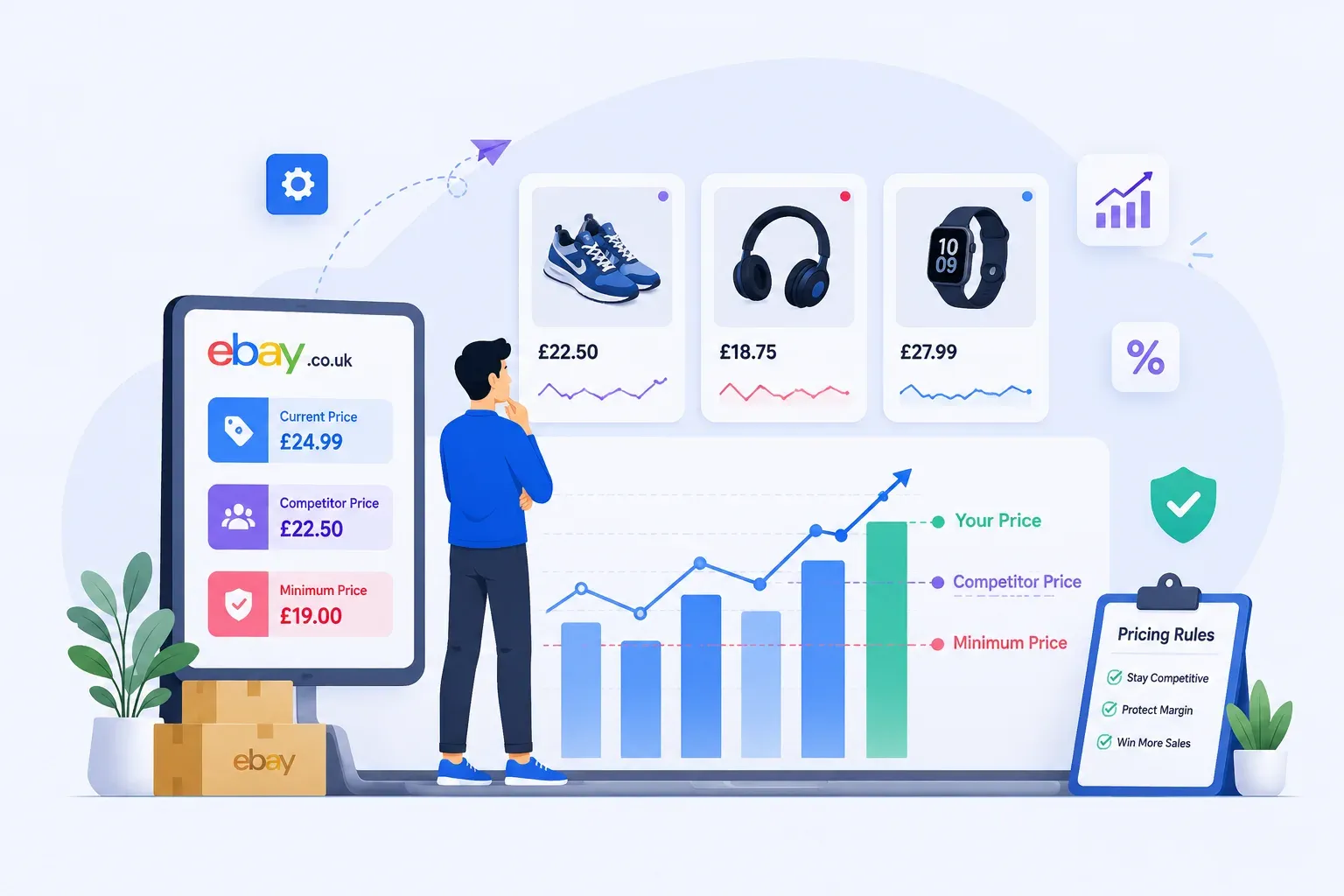
Base prices on what has sold, not on asking prices: filter an eBay search by Sold items. Then check the price still leaves a margin after fees and postage: our free eBay profit calculator does the sum.
Competitor prices change every day. Prolisto's automated pricing checks competitors' active and sold prices on eBay and Amazon and reprices your listings within the floors and ceilings you set. There's more on pricing strategy in our guide to eBay dynamic pricing.
Step 6: Set up stock control
Every item needs a place on a shelf and an accurate count. Without that, items get lost, oversold or listed twice. Give each item a shelf location when it's listed, so anyone can find it when it sells.
If you also sell on Amazon, Discogs or your own website, keep one stock count for all of them. Prolisto syncs quantities across eBay, Amazon, Discogs, WooCommerce and ShopBlocks as soon as an item sells, so the last item can't sell twice. Multichannel inventory.
Step 7: Plan postage and dispatch
Set up business policies for postage, returns and payment, so every listing uses the same rules (how to use eBay business policies). Offer a tracked option, and consider free postage on items where the cost can be built into the price.
As orders grow, print labels in batches instead of one at a time. Prolisto connects directly to Royal Mail, Whistl, DHL, Deutsche Post and Amazon Easy Ship, and courier rules choose the service by size, weight and destination. Dispatch marks each order as sent with tracking and takes the items off stock. Order fulfilment.
Step 8: Promote your store
- Promoted Listings. Paid ads that lift your listings in search. Set a budget and check the sales they bring in.
- Offers to buyers. Send discounts to watchers and buyers who showed interest.
- Multi-buy and order discounts. Encourage buyers to add more to their basket, which also saves on postage.
Prolisto can set Promoted Listings rates per listing and send eBay offers automatically, by rules you control. eBay automations.
Step 9: Answer buyers quickly
Quick, accurate replies prevent cases and negative feedback. Answering is quicker when you can see the buyer's orders, returns and cases next to their message. Prolisto's customer service portal shows all of that on one screen, and AI picks the right reply template for each message. Customer service portal.
Step 10: Track performance and keep improving
Check your seller dashboard every week: late dispatch, cases, returns and your seller level. Look at which categories and price points sell best, and buy more of what works. Improving these numbers is how you reach Top Rated Seller status.
Want help setting up your store and your processes? Book a demo, or start free with the AI listing generator and repricer.
Run your eBay and Amazon business in one place
Start free trialBy Prolisto Team · Last updated 19 October 2026
The Prolisto team builds listing, pricing, inventory and fulfilment tools for eBay, Amazon and WooCommerce sellers, and writes about what works on the marketplaces.